Slack Integration
Slack Integration
The YouEx.ai app for Slack lets your team work with your CRM without leaving Slack. After it is connected, members can search leads, contacts, companies, and opportunities, open record details, edit leads, and receive alerts when high-intent leads are assigned.
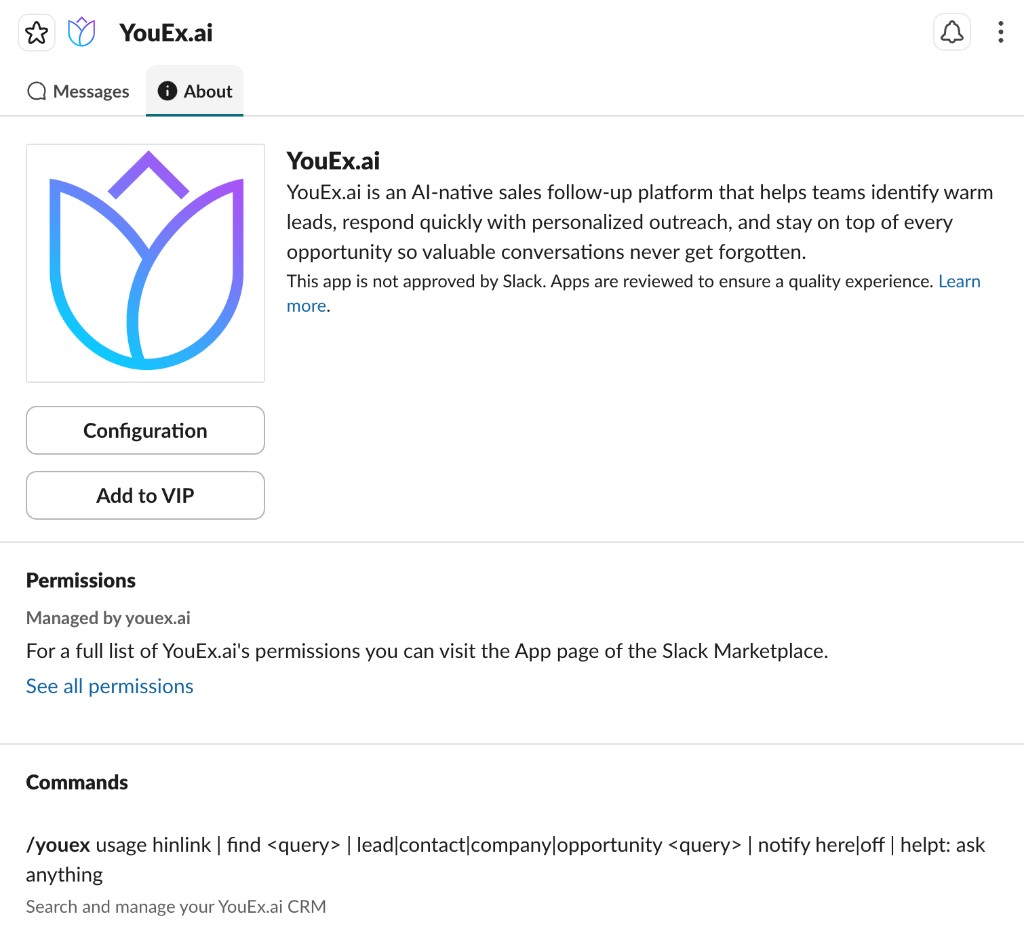
Slack actions always run through your own YouEx.ai sign-in and workspace permissions. Before you can see or change anything, you link your Slack identity to your YouEx.ai account and choose which of your workspaces to work in.
How access works
There are two separate steps:
- Connect the workspace (one time, done by an Owner or Admin). This installs the YouEx.ai app in your Slack workspace and sets the YouEx.ai workspace that receives channel lead alerts.
- Link your account (each user). This connects your personal Slack identity to your YouEx.ai account and the workspace you choose, so the app can act with your permissions.
Until you complete step 2, the app will ask you to run /youex link before showing any data.
Before you connect
Make sure:
- the YouEx.ai Slack integration is enabled for your organization
- the person connecting the workspace is an Owner or Admin in YouEx.ai
- each user who will use the app is already a member of a YouEx.ai workspace
Setup
Connect YouEx.ai to Slack
This is a one-time setup per Slack workspace, done by an Owner or Admin.
You can start from either place:
- In YouEx.ai, open
Workspace Settingsand choose Connect Slack Workspace - Or use Add to Slack:

Then complete the flow:
- In Slack, review the requested permissions and Allow the YouEx.ai app.
- Sign in to YouEx.ai when prompted.
- Choose which YouEx.ai workspace to connect to this Slack workspace. This is the workspace that will receive channel lead alerts.
- Confirm. You will see a Slack connected confirmation.
Each Slack workspace maps to one YouEx.ai home workspace for channel lead alerts. A YouEx.ai workspace can connect more than one Slack workspace. Individual users can still link their own account to whichever YouEx.ai workspace they belong to — see Link your account. If this Slack workspace is already connected elsewhere, the app tells you instead of silently re-pointing it.
After connecting, invite the app to any channel where you want it to post or unfurl links:
/invite @YouEx.ai
Link your account
Each person who wants to use the app links their own account and chooses which of their YouEx.ai workspaces to use.
- In Slack, run
/youex link. - Open the link the app sends back (it expires in 10 minutes).
- Sign in to YouEx.ai.
- Choose which of your YouEx.ai workspaces to link (if you belong to just one, it is selected for you) and confirm.
You are now linked, and your Slack searches, record views, and edits act in the workspace you chose. To switch to a different workspace later, run /youex link again and pick another. If your YouEx.ai membership is later removed, the app stops showing you data until access is restored.
/youex link. Those can be different.Usage
Commands
All slash-command responses are private to you (only you see them in the channel).
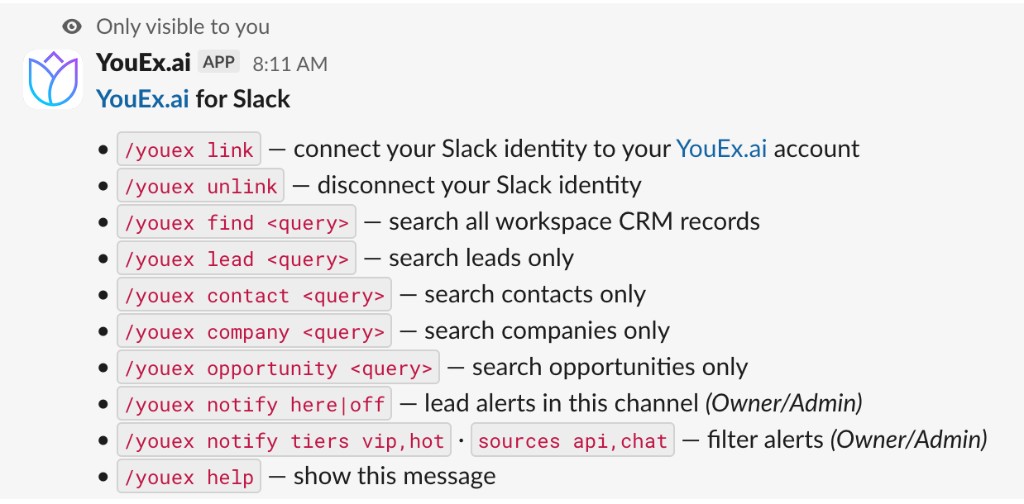
Account
| Command | What it does |
|---|---|
/youex link | Connect your Slack identity to your YouEx.ai account. |
/youex unlink | Disconnect your Slack identity. |
Search
| Command | What it does |
|---|---|
/youex find <query> | Search across all CRM record types. |
/youex lead <query> | Search leads only. |
/youex contact <query> | Search contacts only. |
/youex company <query> | Search companies only. |
/youex opportunity <query> | Search opportunities only. |
Notifications (Owner/Admin)
| Command | What it does |
|---|---|
/youex notify here | Turn on lead alerts in the current channel. |
/youex notify off | Turn lead alerts off. |
/youex notify tiers <list> | Choose which lead tiers trigger alerts. |
/youex notify sources <list> | Choose which lead sources trigger alerts. |
/youex notify | Show the current alert settings. |
Help
| Command | What it does |
|---|---|
/youex help | Show the list of commands. |
Searching your CRM
Run a search such as:
/youex find acme
/youex lead ada@example.com
The app returns matching records privately. Each result includes View and Open in YouEx.ai. Leads also include Edit.
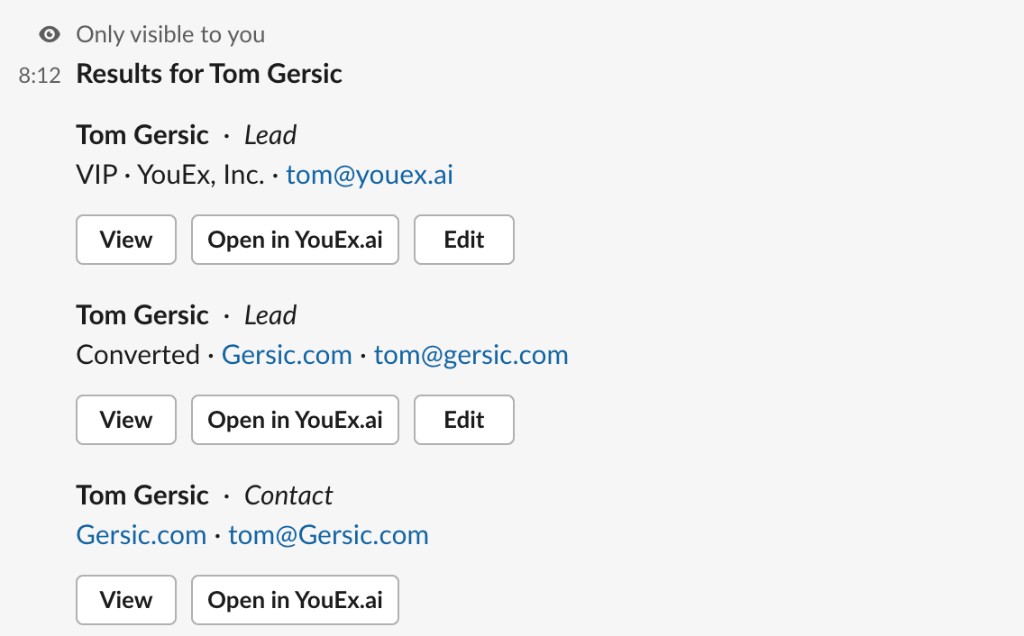
Searches are scoped to the workspace you linked and to your permissions. If you are not linked, the app prompts you to run /youex link first.
Viewing and editing records
- View opens a private panel with the record's details. For a lead, that includes name, email, phone, title, company, and research when available.
- Open in YouEx.ai opens the record in the YouEx.ai web app.
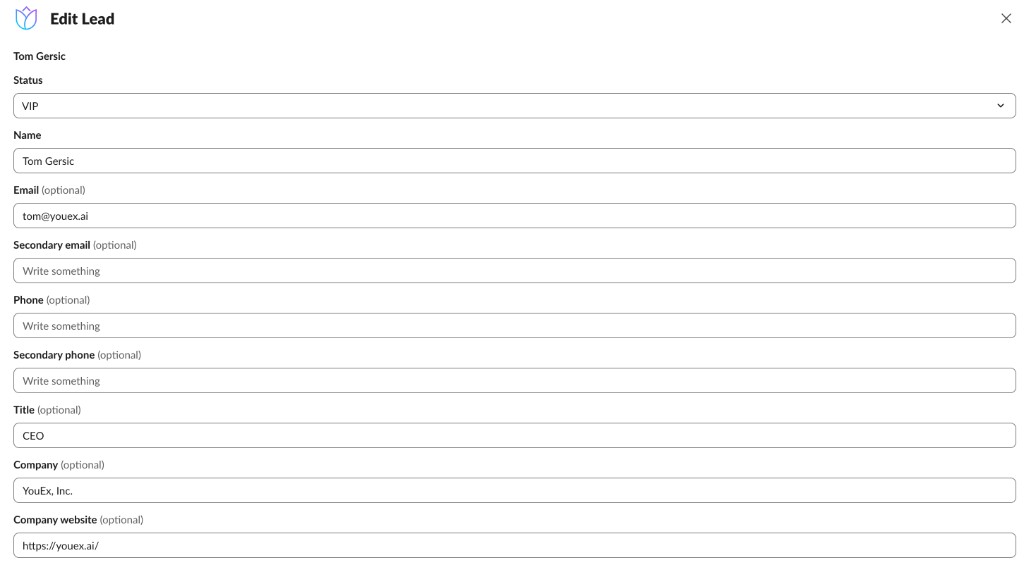
- Edit (available for leads) lets you update standard fields, change the status, edit tags, and assign the lead to a pool. Validation runs before anything is saved, so a single bad field never causes a partial update.
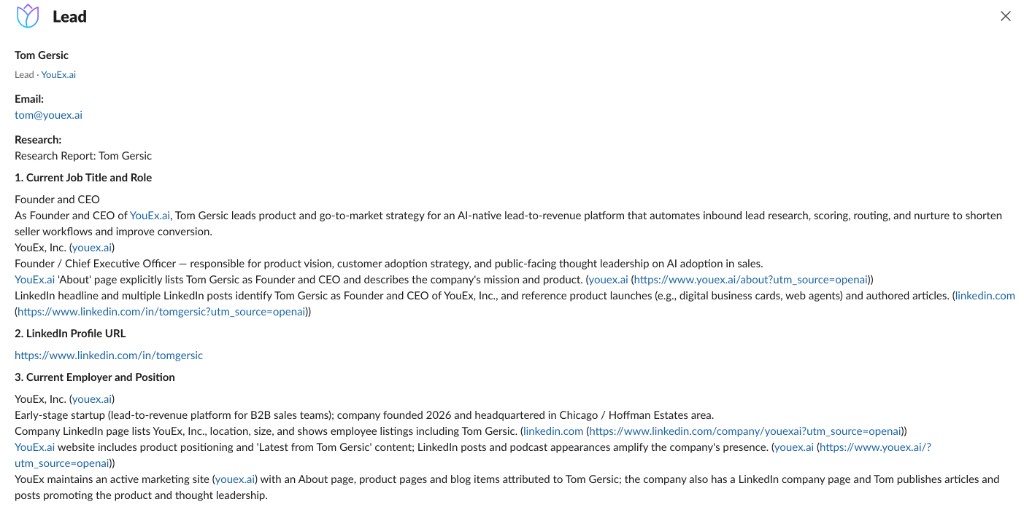
Lead alerts
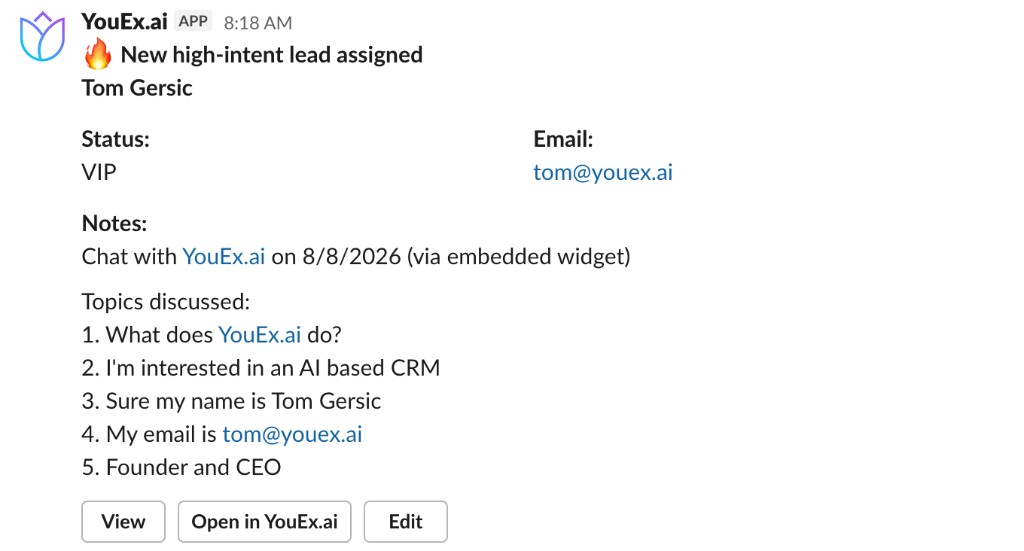
When lead alerts are on, the app posts a card to your chosen channel whenever a qualifying lead is assigned, so the right person can pick it up quickly. The card shows the lead's name, status, key fields, and a preview of its notes, with buttons to view, open, or edit the record.
Turn alerts on
Run this in the channel where you want alerts:
/youex notify here
The app only turns alerts on after confirming it can actually post in that channel. If it cannot, invite it first:
/invite @YouEx.ai
Then run /youex notify here again.
Filter by tier
By default, alerts fire for VIP and Hot leads only. To change that, list the tiers you want:
/youex notify tiers vip,hot,warm,cold
Valid tiers: vip, hot, warm, cold.
Filter by source
By default, alerts fire for leads from all sources (except bulk imports, which are never notified). To restrict to specific sources:
/youex notify sources api,chat
Valid sources: api, chat, email, manual, form, mcp. Use all to reset to every source.
Check current settings
/youex notify
This shows whether alerts are on, the channel they post to, and the active tier and source filters.
When an alert fires
An alert is sent only when a lead actually moves from unassigned to assigned. Re-scoring or retrying an already-assigned lead does not send a duplicate alert, and bulk-imported leads never trigger alerts.
Sharing record links
When a linked, authorized member shares a YouEx.ai record link in a channel where the app is present, the app expands the link into a card with the record's key details and a View button.
Keep in mind:
- A link card in a channel is visible to everyone in that channel. Share record links only in channels where that is appropriate.
- If the person who shared the link is not linked (or their access was removed), or the record is not in the workspace they linked, the app shows a generic card with no record details instead.
- The View button always opens details privately and only for the person who clicks it.
For the app to expand links, it must be a member of the channel (/invite @YouEx.ai).
Privacy and permissions
- Slack actions use your own YouEx.ai identity and workspace permissions.
- Private views (record details, search results, command responses) are visible only to the person who triggered them.
- Channel-visible content (lead alerts and shared link cards) is visible to everyone in the channel.
- Edit and assignment actions follow the same rules as the main YouEx.ai app.
- Only Owners and Admins of the connected YouEx.ai home workspace can change
/youex notifysettings.
Disconnecting
- To disconnect just your own account, run
/youex unlink. This affects only you. - To disconnect one Slack workspace from YouEx.ai, open
Workspace Settingsand disconnect that Slack binding. Existing user links for that Slack workspace are also removed. - Removing the YouEx.ai app from Slack's app management also removes the connection and every member's link for that Slack workspace.
Troubleshooting
The app asks me to link my account
Run /youex link and complete the sign-in. The link expires after 10 minutes, so request a fresh one if needed.
A command says the workspace is not connected
An Owner or Admin needs to connect YouEx.ai to your Slack workspace first. See Connect YouEx.ai to Slack.
Lead alerts are not posting
Check that:
- alerts are on for the right channel (
/youex notify) - the app is a member of that channel (
/invite @YouEx.ai) - the lead's tier matches your tier filter (the default is VIP and Hot only)
- the lead's source matches your source filter (bulk imports never notify)
- the lead was actually assigned (alerts fire on assignment, not on creation)
A shared link is not expanding
Make sure:
- the app is in the channel (
/invite @YouEx.ai) - the link points to a record in the workspace the sharer linked to
- the person who shared it is a linked, authorized member
If the link only shows a basic preview, it may have already been expanded recently in that channel; try a different record or channel.
Only Owners or Admins can change notifications
/youex notify settings are limited to Owners and Admins of the connected workspace (the one set up during install, which receives the alerts). Other members can still use search, view, and edit.