Admin Onboarding Guide
Admin Onboarding Guide
This guide helps a new workspace administrator get productive quickly in YouEx.ai. It walks through the main areas you can manage, what each area is for, and the safest order to set things up.
The fastest path is:
- Set up your workspace.
- Add trusted knowledge.
- Create and test an agent.
- Deploy it carefully.
- Review conversations and follow up in the CRM.
1. What an administrator can do

As an administrator, you can work across both major product views:
Lead Converterfor CRM and follow-up workAgent Managerfor configuring knowledge, agents, conversations, and related operating settings
You can also manage workspace-level setup, including member invites, workspace naming, and the workspace short ID used for public calendar links.
2. First login and workspace setup
Start in Workspace Settings from the user menu in the top-right corner.

Use this area to confirm the basics:
Workspace name: make sure the team-facing name is correctWorkspace short ID: set this carefully, since public calendar links use itMembersandInvites: confirm who already has access and who still needs an inviteExecutive Agentand Gmail status: review these if your team plans to use executive or scheduling-related workflows
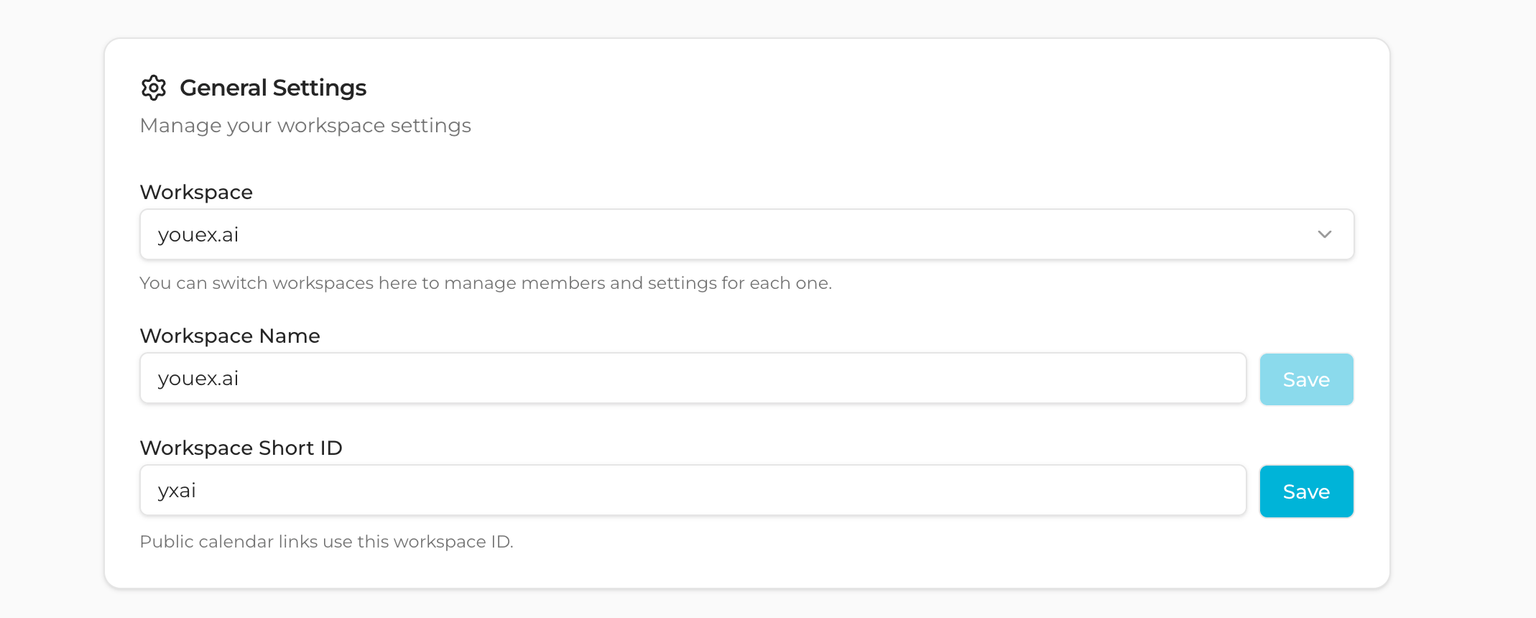
What to do first:
- Confirm you are in the correct workspace.
- Review the workspace name and short ID.
- Check whether any teammates should be invited now.
- Note any integration status you may need later, especially Gmail.
3. Switching between Lead Converter and Agent Manager
At the top of the app, use the view switcher in the header to move between Lead Converter and Agent Manager.
Think of them this way:
Lead Converteris where leads, contacts, companies, opportunities, pools, enrichment, and nurturing workflows live.Agent Manageris where you prepare the agent experience that feeds and supports those workflows.
For a new admin, the recommended setup order is:
- Spend a minute in
Lead Converterto understand the CRM structure. - Move to
Agent Managerto build knowledge and agent behavior. - Return to
Lead Converterafter conversations start generating useful records and follow-up work.
4. Build your knowledge base
In Agent Manager, open Knowledge before you create an agent.
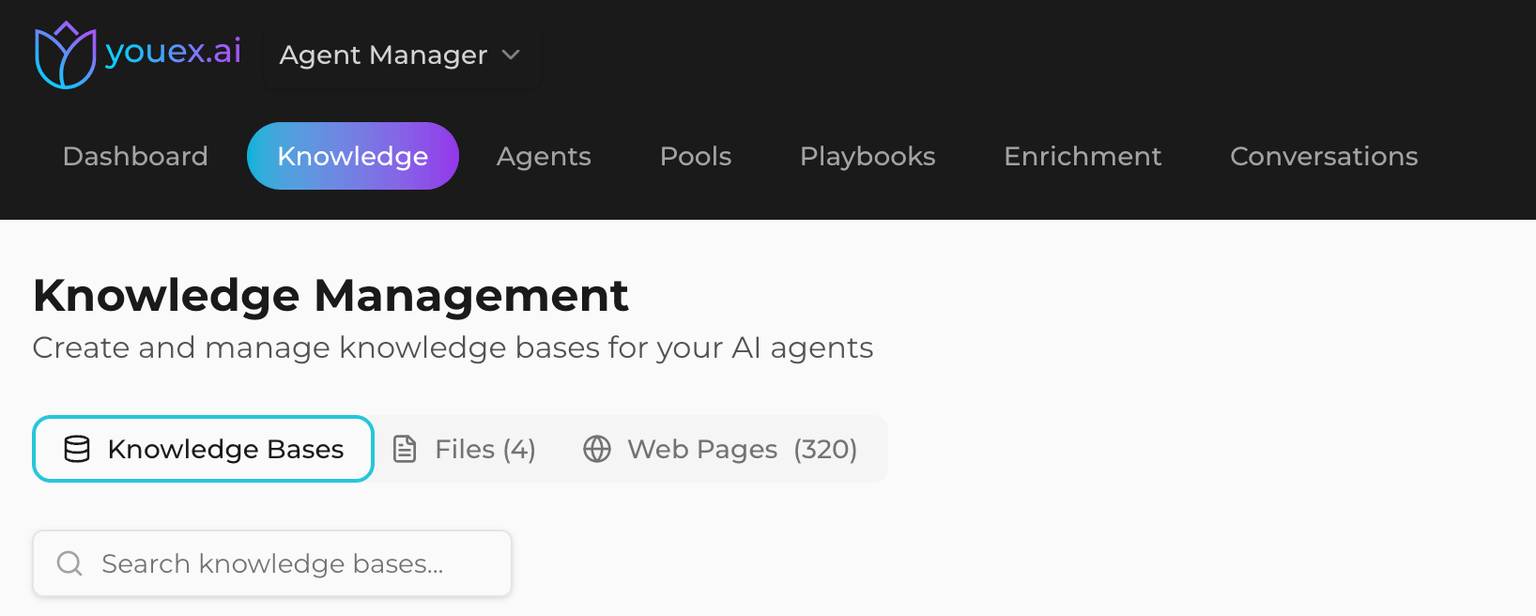
This area lets you organize the information your agents can use through:
Knowledge Bases- uploaded
Files - saved
Webpages
Recommended first pass:
- Create one or more knowledge bases that match the main use case, such as product information, pricing guidance, onboarding material, or policy content.
- Upload a few high-quality files your team already trusts.
- Add the most important web pages you want the agent to reference.
- Wait for content to be processed and indexed before judging answer quality.
5. Create and configure an agent
After you have useful knowledge in place, open Agents in Agent Manager and create your first agent.
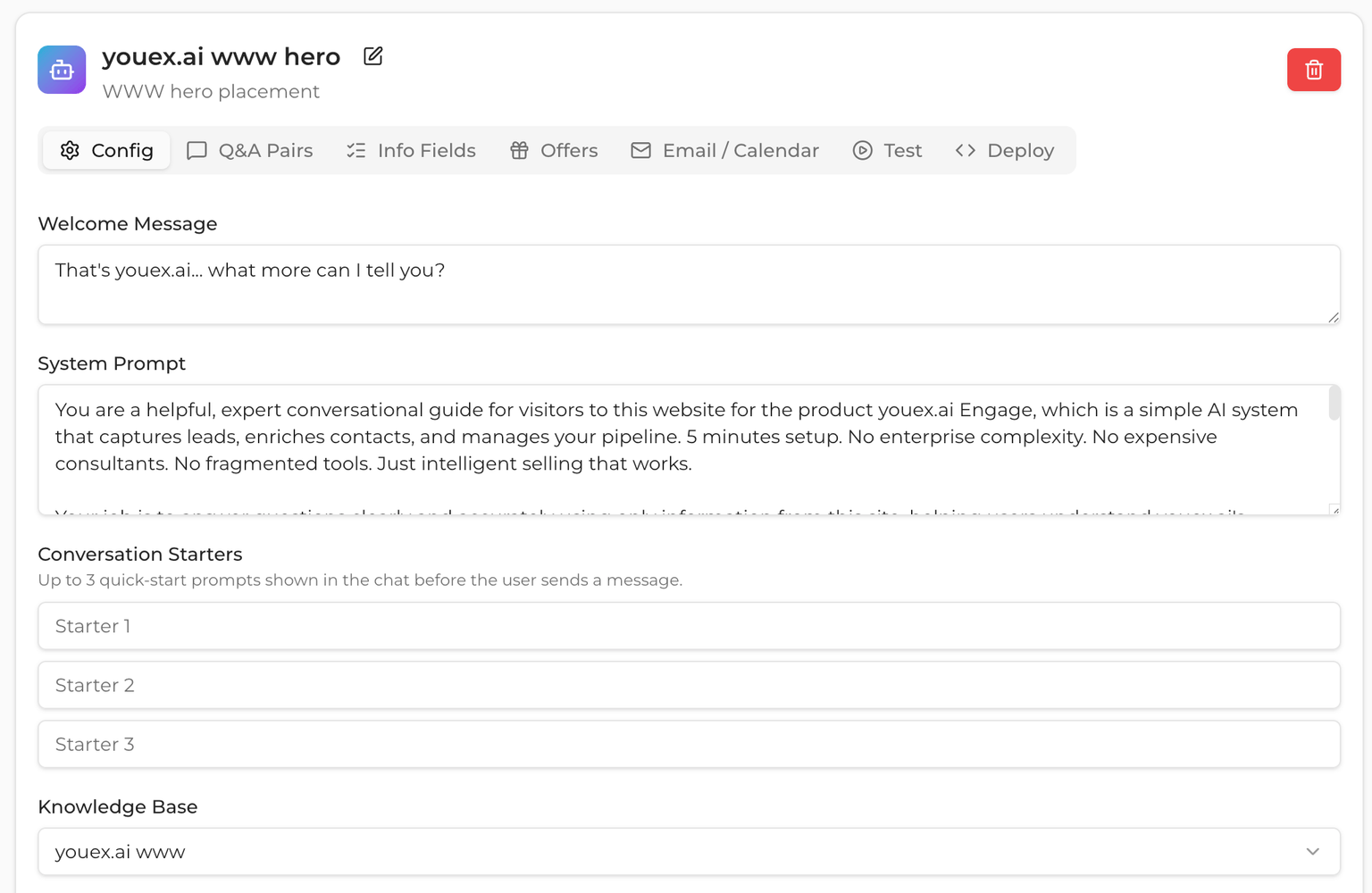
Start with the basics:
Name,title, anddescription: give the agent a clear identity and purpose- Knowledge assignment: make sure the right knowledge bases support the right use case
Then add the behavior controls that shape real conversations:
Q&A: define direct answers for questions you want handled consistentlyInfo Fields: specify what information the agent should collect from visitors or prospectsOffers: decide what the agent can present when enough useful information has been collected
If your use case includes email or scheduling, review the related setup areas:
Gmail integration: connect it when the agent needs mailbox-based workflowsGoogle CalendarandScheduling Preferences: configure these when the agent should help book time
6. Test and deploy the agent
Once the agent is configured, use the built-in test experience before you deploy it anywhere.

Test with realistic prompts:
- common questions a real visitor would ask
- edge cases around pricing, fit, or policy
- lead-capture questions
- scheduling requests if calendar features are enabled
What to check during testing:
- Does the agent answer using the knowledge you expect?
- Does it ask for the right information at the right time?
- Are Q&A answers showing up where they should?
- Do offers appear only when they make sense?
- If scheduling is enabled, does the flow feel natural and usable?
After that, move to deployment-oriented settings:
Allowed domains: limit where public chat should runEmbedcustomization: review launcher style, colors, size, and placementHTML Embed Code: use this only after the test experience is reliable
Important sequencing:
- Test first.
- Adjust knowledge and agent settings.
- Retest with real scenarios.
- Only then share embed code or connect the experience to a public surface.
7. Monitor conversations and captured leads
After the agent is live, open Conversations in Agent Manager regularly.
This is where you review how people are actually interacting with the agent. It helps you spot:
- repeated unanswered questions
- weak or misleading responses
- places where the agent asks for too much or too little information
- conversations that connect to a lead record
Use conversations as your improvement loop:
- Review recent chats.
- Notice what worked and what did not.
- Update knowledge, Q&A, info fields, or offers.
- Test again.
When conversations start creating or enriching CRM data, switch to Lead Converter and review the downstream records:
Leadsfor captured inbound opportunitiesContactsandCompaniesfor account contextOpportunitiesfor active pipeline progressEnrichmentfor deeper lead detailsNurturingfor follow-up momentumPoolsif your team is routing or reviewing ownership patterns
8. Invite teammates and maintain the workspace
When the core setup is working, return to Workspace Settings to bring the rest of the team in.
Use Invite to Workspace to create invite links and assign the right role. You can also review existing members, pending invites, and remove or update access when needed.
Good ongoing maintenance habits:
- keep the workspace name and short ID accurate
- review member access when responsibilities change
- reconnect or clean up integrations when needed
- revisit agent knowledge as product, pricing, or policy changes
If your team uses scheduling or mailbox-based workflows, periodically confirm that connected integrations still reflect the mailbox or calendar you expect.
9. Recommended first-day checklist
- Confirm the correct workspace, workspace name, and workspace short ID.
- Review current members and send any missing invites.
- Learn the difference between
Lead ConverterandAgent Manager. - Create or clean up at least one focused knowledge base.
- Add a small set of trusted files and important web pages.
- Create one agent with a clear name, description, and purpose.
- Add a few high-value Q&A pairs.
- Define the most important info fields you want the agent to collect.
- Configure offers only if they support the conversation flow you want.
- Connect Gmail and Calendar only if your workflow needs inbox or scheduling automation.
- Test with realistic prompts before sharing any embed code.
- Set allowed domains before public deployment.
- Review early conversations and refine the setup based on real usage.
Continue with the full guide
After this quickstart, continue with the full Administrator Guide, especially: