Forms (Form Concierge)
Forms (Form Concierge)
A Form Concierge is a form you embed on your site with a chat assistant attached to it. Visitors fill in the fields you ask for, and a Help handle on the edge of the form opens a drawer where they can ask questions without losing their place. When they submit, the form creates a lead and the concierge picks up the conversation.
It solves the usual trade-off with contact forms. A short form converts better but tells you nothing; a long form qualifies well but scares people off. Here the form stays short and the concierge collects the rest conversationally — while also answering the questions that would otherwise send a visitor off to hunt through your site.
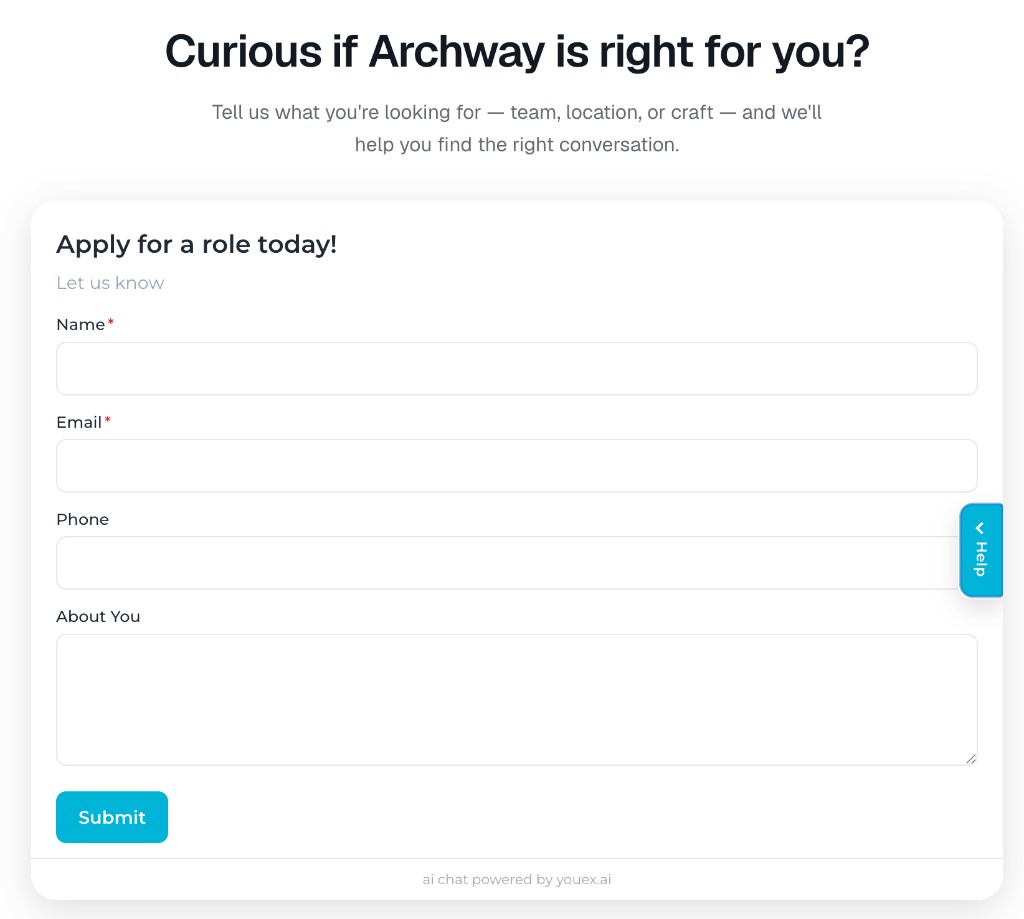
Forms live on their own admin page, separate from web agents.
Agents page, and web agents do not appear under Forms. Each kind is managed only from its own page, and the kind is fixed at creation — you cannot convert a web agent into a form or the reverse.Form Concierge vs. a web agent
| Web agent | Form Concierge | |
|---|---|---|
| Managed under | Agents | Forms |
| What the visitor sees | A chat launcher or hero chat | A form card with a Help drawer |
| How required info is captured | Chat asks, and can hold off answering until it has critical fields | The form enforces required fields on submit; chat always answers freely |
| Lead created | Lead type inbound_chat, source Public Chat | Lead type website_form, source Form Concierge |
| Offers | Configurable | Not offered on this page |
The important behavioral difference is the third row. A web agent can withhold an answer until it gets a critical field. A Form Concierge never does that, because the form is where required capture happens — so the chat is free to be genuinely helpful while the visitor is still deciding whether to submit.
Setup at a glance
- Create the Form Concierge and point it at a knowledge base.
- Add your fields, deciding which appear on the form and which the concierge asks for later.
- Write the headline, subtitle, submit label, and post-submit handoff message.
- Add Q&A pairs for anything that needs a word-for-word answer.
- Test the form and the drawer in the Test tab.
- Restrict allowed domains, then copy the snippet from Deploy onto your page.
1. Create a Form Concierge
Open Forms in the admin navigation and click New Form Concierge.
| Field | Notes |
|---|---|
| Name | Internal name, shown in the Forms list. Required. |
| Form headline | The heading visitors see. Optional — if you leave it blank, the name is used. |
| Knowledge Base | Optional here, but the concierge can only answer from knowledge you give it. Pick one now or set it later on the Concierge tab. |
New forms are created with sensible defaults: a Submit button, a post-submit handoff message, auto-open chat on submit, and a right-side chat drawer. All of those are editable on the Form tab.
2. Build the form
Everything on the Form tab saves as you go — text fields save when you click out of them, switches and dropdowns save immediately.
Copy and behavior
| Setting | What it does |
|---|---|
| Headline | Heading on the form card. Falls back to the form's name. |
| Subtitle | Supporting line under the headline. Optional. |
| Submit button label | Button text. Reverts to Submit if you clear it. |
| Chat drawer position | Which edge the Help handle and drawer open from: Right (default), Left, Bottom, or Top. |
| Auto-open chat on submit | On by default. Opens the concierge with your handoff message the moment the form is submitted. |
| Post-submit chat message | The concierge's first message after submit. This is the handoff — treat it as the start of a conversation, not a receipt. |
Fields, and where they live
Fields are split into two sections, and choosing the section is the main decision you make on this tab.
- On the form — fields visitors fill in before they submit. These render on the form card, and required ones are enforced on submit.
- Concierge can ask (not on form) — fields that never render on the form. Chat collects them later, in conversation.
Use the up and down arrows on each row to move a field between the two sections. Required toggles inline on form fields.
The section, along with the required flag, also sets how insistently the concierge pursues a field in chat:
| Section | Required | How chat treats it |
|---|---|---|
| On the form | Required | Highest priority — asked first when still missing |
| On the form | Optional | Collected before anything gated on it |
| Concierge can ask | — | Low priority — asked at a natural pause |
Adding a field
Add field on either section opens the editor.
| Field | Notes |
|---|---|
| Field label | What the visitor reads. The Field name is generated from this as you type. |
| Field name | The key stored on the lead. Edit it if you want something specific — once you change it by hand, it stops following the label. |
| Type | Text, Email, Phone, Number, Long text, or Select. |
| Select options | One option per line, or comma-separated. A Select field needs at least one option. |
| Required on form | Only for fields on the form. On by default when you add a form field. |
Use the pencil icon to edit a field later, and the trash icon to remove it.
3. Set up the concierge
The Concierge tab controls the chat side.
| Setting | Notes |
|---|---|
| Welcome message | The first thing shown when a visitor pulls the Help handle open, before they say anything. |
| System prompt | How the concierge should behave — tone, boundaries, what to steer toward. |
| Knowledge Base | Where answers come from. |
The same division of labor as any agent applies: the system prompt is for behavior, the knowledge base is for facts, and Q&A pairs are for wording you cannot let drift. See Knowledge Management for getting content indexed.
4. Q&A pairs
The Q&A Pairs tab manages verbatim answers for this concierge — the same mechanism described in Agent Configuration, available here so you can maintain them without leaving the form.
Each pair has a Question, an Answer, and optional Keywords (comma- or newline-separated). Use the pencil icon to edit an existing pair and the trash icon to delete it.
A pair wins over a generated answer when the visitor's message exactly matches the question, matches one of your keywords, or is a strong paraphrase of the question. Matching is deliberately conservative, so a loosely related question will not trigger a compliance or policy answer by accident.
example.com and it will link — you do not need markdown link syntax.5. Test it
The Test tab renders the real form and the real drawer: fill in fields, pull the Help handle, submit, and watch the handoff. Reset test clears the form, the chat, and the test conversation.
Form Concierge TEST submission, so you can find and clean them up, but they are not simulated. Use throwaway values, and delete the leads afterward if you test repeatedly.The Test tab mirrors live behavior with two intentional differences: it skips the allowed-domains check, so you can test before your site is configured, and it does not use the returning-visitor memory that the public embed keeps in the browser. State is preserved only within the current test conversation.
6. Deploy
Settings
| Setting | Notes |
|---|---|
| Mount element id | The id of the div the form renders into. Defaults to youex-form-concierge. The snippet includes this div for you. |
| Width | Form width, for example 640px or 100%. |
| Primary color / Secondary color | Brand colors for the form and chat. |
| Chat background | Background of the chat drawer. |
| Chat font size (px) | Between 12 and 24. |
| Allowed domains | Comma-separated list of sites permitted to load and submit this form. |
Visitor preview gives you a rough sense of the layout. It always draws the drawer on the right regardless of your Chat drawer position setting — use the Test tab to check the real position.
The snippet
Unlike a web agent snippet, the form snippet is paste-once: it includes the mount div, so the whole block goes wherever you want the form to appear on the page.
<!-- YouEx.ai Chat Widget -->
<div id="youex-form-concierge"></div>
<script src="https://engage.youex.ai/embed/youex-widget.js?v=1.1.13"></script>
<script>
  YouExWidget.create({
    agentId: "YOUR_FORM_ID",
    apiBaseUrl: "https://engage.youex.ai",
    position: "bottom-right",
    placement: "hero",
    width: "640px",
    height: "640px",
    launcherStyle: "icon",
    mountId: "youex-form-concierge",
    chatBackgroundColor: "#ffffff",
    chatAccentColor: "#e5e7eb",
    promptTheme: "dark",
    heroMaxHeight: "",
    launcherText: "Ask me anything...",
    launcherTextSizePx: 28,
    promptTextColor: ""
  });
</script>
Copy the real snippet from the Deploy tab rather than adapting this example — it carries your form's id, colors, and mount id.
The form sizes itself to your layout, and it does not inherit your page's text styling: alignment, capitalization, and letter spacing from a surrounding hero or centered section will not distort the form's labels.
Allowed domains
How entries are matched:
| Entry | Matches |
|---|---|
example.com | example.com only — not www.example.com |
*.example.com | example.com and any subdomain, such as www.example.com or app.example.com |
https://example.com | That exact origin, including scheme |
A blocked page gets a 403 with Origin not allowed for this agent. If your form works on example.com but not www.example.com, this is why — use the wildcard form.
Content Security Policy
If the host page sends a Content Security Policy, allow YouEx in that policy or the snippet will not run. Full directive table: Agent Configuration → Content Security Policy.
Minimum for a form with chat:
script-src  https://engage.youex.ai https://youex.ai
connect-src https://engage.youex.ai https://youex.ai
If the form has a PDF (file) field, the browser uploads to S3 after YouEx presigns the request. Also add:
https://youex-engage-workspace-private.s3.us-east-1.amazonaws.com
https://*.s3.us-east-1.amazonaws.com
to connect-src. Without those hosts, Choose file looks fine and the upload fails. That is a host CSP (or S3 CORS) issue, not an Allowed domains issue.
What happens when a visitor submits
- Only the fields on the form are validated. Required ones must be filled, and each value must match its field type.
- A Lead is created or updated, with lead type
website_formand sourceForm Concierge. It appears in the CRM like any other lead — see Working CRM Records. Filtering on that source is the cleanest way to see what a form is producing. - A Conversation is created, or the pre-submit chat conversation is reused, so a visitor who chatted first does not end up split across two threads.
- The submitted values are recorded as trusted — they came from a real submit rather than from the browser — and are used for personalization and for anything gated on collected info.
- Your Post-submit chat message is posted, and the drawer opens if Auto-open chat on submit is on.
Two things worth knowing:
- Opening Help is not submitting. A visitor can chat as long as they like without the form counting as submitted. Chat may still create a lead from what they share, as a normal chat lead.
- A duplicate submit is harmless. Re-submitting the same conversation succeeds without posting the handoff message twice.
What visitors see
The Help handle sits on the edge you configured and is the only control in the form's chrome — it opens the drawer when closed and closes it when open. Clicking the dimmed area over the form dismisses the drawer too, as does the Escape key. Side drawers cover part of the form and leave the rest visible; top and bottom drawers cover roughly two-thirds of its height. The form itself never moves.
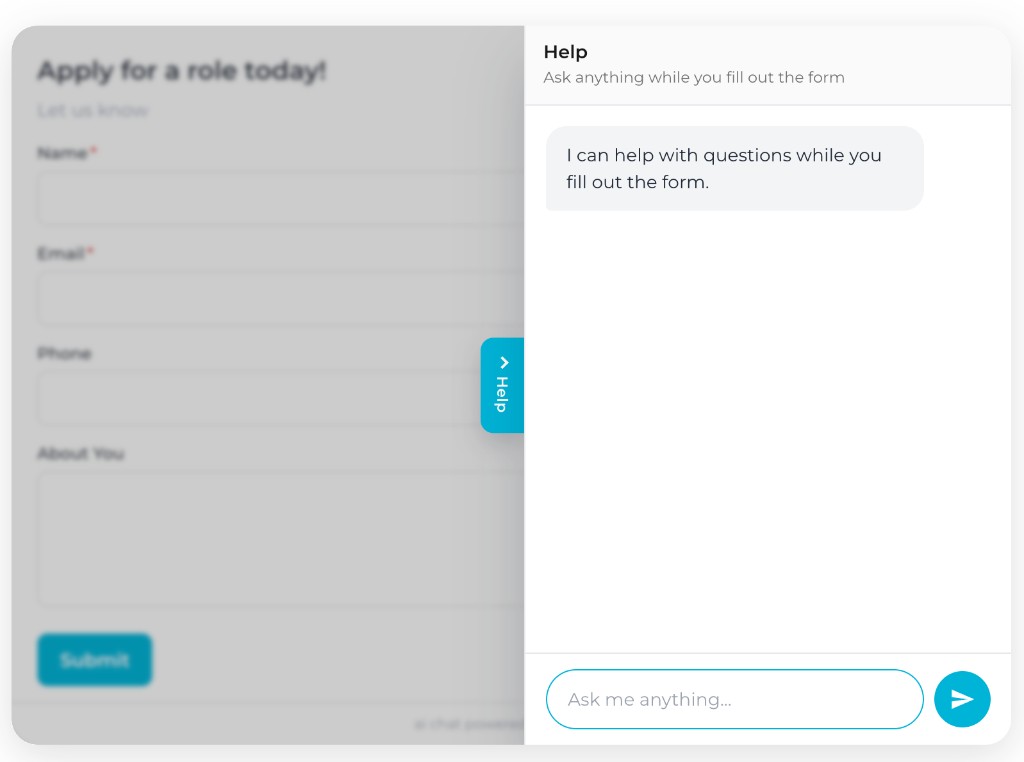
Because the form stays put behind the drawer, a visitor can open Help mid-way through filling it in, get an answer, and close it without losing what they typed.
Chat fills in the form
When the concierge collects something in chat that also appears on the form, it writes the value into the visible field, so a visitor is never asked the same thing twice.
The rules are conservative:
- Anything the visitor already typed is left alone.
- A value that fails its field's own validation is skipped, rather than dropped into the input for the visitor to fix.
- Select values resolve back to your configured option regardless of casing — "demo" fills in
Demo.
This is a convenience only. Values painted into the form still have to pass validation on submit like anything else.
Limits and validation
Field validation
| Type | Accepted |
|---|---|
| A valid address; stored lowercased | |
| Phone | 7–15 digits, ignoring spaces, dashes, and parentheses |
| Number | A number; commas are ignored |
| Select | One of the configured options |
| Text / Long text | Any non-empty value |
Visitors see Please fill in all required fields. for empty required fields. Values that fail a type check come back from the server as Invalid form field values.
Chat and rate limits
| Limit | Value |
|---|---|
| Message length | 2,000 characters |
| Conversation history sent per turn | 20 messages, 8,000 characters |
| Form submits | 20 per minute, per visitor IP and form |
| Chat messages | 10 per minute, per visitor IP and form |
Best practices
- Put no more than three or four fields on the form, and move the rest to Concierge can ask.
- Make the Post-submit chat message open a door: "Want me to walk you through pricing while you're here?" beats "Thanks, we'll be in touch."
- Add Q&A pairs for the objections and policy questions that come up before someone is willing to submit. Those are exactly the questions a form alone loses.
- Put the form on the page where the intent is, not only on a generic contact page.
- Test on staging with allowed domains set, in a real browser, before going live.
- Review real conversations afterward and fold recurring questions back into knowledge or Q&A pairs — see Testing, Deployment, and Conversations.
Troubleshooting
| Symptom | What to check |
|---|---|
| Form does not appear | The snippet's <div> is present and its id matches Mount element id; the script loaded; the page origin is allowed; script-src allows https://engage.youex.ai (see CSP). |
Origin not allowed for this agent | Add the site to Allowed domains, using *.example.com if you serve from a subdomain such as www. |
| Chat or submit never leaves the browser | Host connect-src must allow https://engage.youex.ai and https://youex.ai. |
| PDF Choose file works, upload fails | connect-src must allow https://youex-engage-workspace-private.s3.us-east-1.amazonaws.com and https://*.s3.us-east-1.amazonaws.com. Also confirm the S3 bucket CORS allows PUT from this page origin. |
Works on the apex domain but not on www | Bare entries match one host exactly. Use the wildcard form. |
| Form loads but submit fails | Read the error text: either missing required fields, or a value failing its field type (email, phone, number, select). |
| Submissions stop working suddenly | The form's agent is inactive, or the workspace subscription is no longer active — both return Agent is not active. |
| Concierge will not answer questions | No knowledge base is linked on the Concierge tab, or the content is not indexed yet. |
| Concierge answers, but with the wrong wording | Add a Q&A pair for that question so the answer cannot drift. |
| Chat answers are vague about your product | That is a knowledge gap, not a prompt problem. Add the source content to the knowledge base. |
| Handle is on the wrong edge | Set Chat drawer position. Ignore the Deploy tab's Visitor preview, which always shows a right drawer. |
| Chat does not open after submit | Auto-open chat on submit is off. |
| Unexpected test leads in the CRM | Test-tab submits create real leads, marked Form Concierge TEST submission in the lead notes. |
| Labels look centered or uppercased on your site | Refresh the embed script — current versions isolate the form from the host page's text styling. |