Proactive messages (Beckons)
Proactive messages (Beckons)
Beckons are short proactive messages that appear near the collapsed chat widget. They invite visitors to engage, and the agent can pick one contextually and translate it into the visitor's language.
Setup has two parts:
- Turn Beckons on for the agent (and optionally set colors).
- Author messages per web page in
Knowledge.
Prerequisites
Before Beckons will show on your site:
- The agent has a linked knowledge base.
- The page URL is saved as a web page in that knowledge base.
- Beckons are enabled on the agent.
- At least one Active beckon exists for that page.
- The embed widget is deployed on the matching page URL.
1. Enable Beckons on the agent
In Agent Manager, open Agents, select your web agent, and find Proactive messages (Beckons) in the appearance / embed settings.
- Turn the master switch On.
- Optionally set Beckon Background and Beckon Text so the bubble matches your site.
- Save any other agent changes as usual (color fields save when you leave the input).
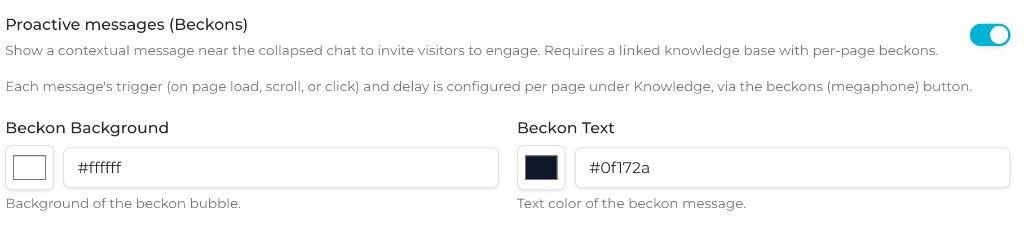
The agent-level switch only controls whether Beckons are allowed to show. Message copy, triggers, and delays are configured per page under Knowledge.
2. Open Beckons for a knowledge web page
In Agent Manager, open Knowledge, then open the knowledge base linked to your agent.
Find the web page row for the URL where you want a beckon. Indexed pages show status badges and action icons on the right. Click the megaphone icon to manage proactive messages for that page.

If beckons already exist, the row also shows a count such as 1 beckon.
3. Add and configure per-page messages
The Proactive messages (Beckons) dialog is where you author what visitors see on that page.
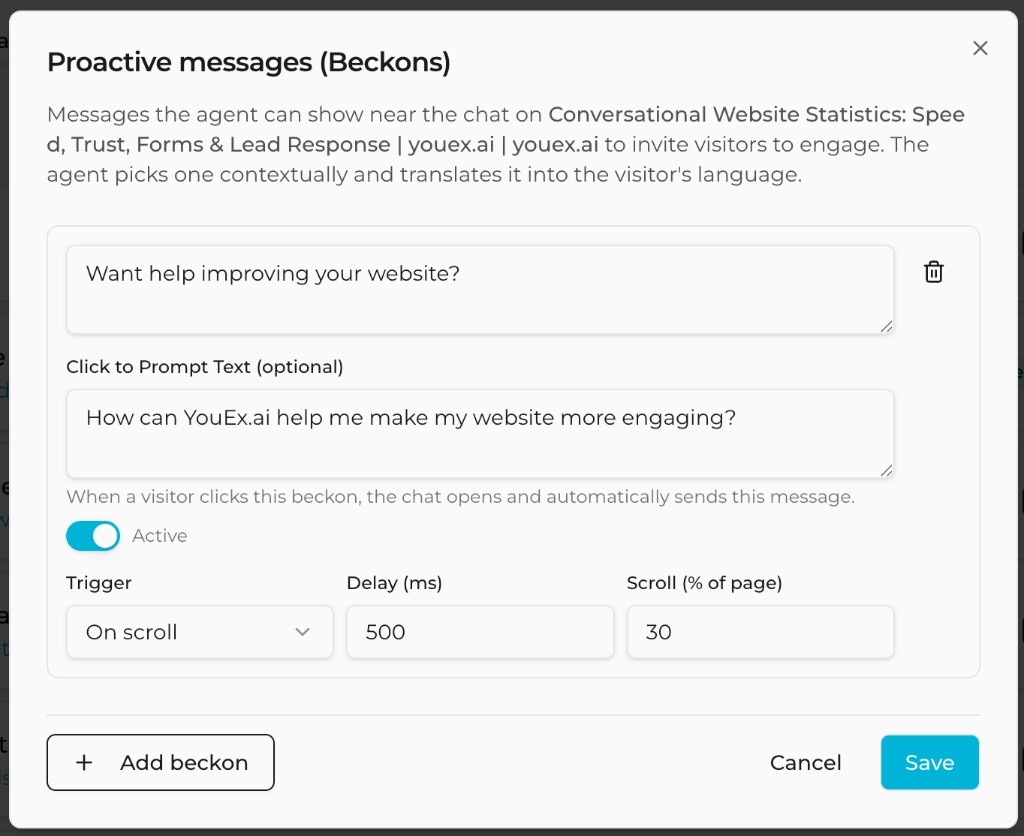
For each beckon:
| Field | What it does |
|---|---|
| Message text | The bubble shown near the chat launcher (required). |
| Click to prompt (optional) | When the visitor clicks the beckon, chat opens and this message is sent automatically. |
| Active | Inactive beckons are ignored at runtime. |
| Trigger | When the beckon becomes eligible to appear. |
| Delay (ms) | Wait time after the trigger condition is met. |
| Scroll (% of page) | Only for On scroll — how far down the page before the delay starts. |
Trigger options
- On page load — start the delay when the page loads.
- On scroll — start the delay after the visitor scrolls past the configured percent of the page.
- On click — start the delay after the visitor clicks somewhere on the page (not the beckon itself).
Use Add beckon to create additional messages for the same page (up to 20). Use the trash icon to remove one. Click Save when finished.
Click to prompt
Leave Click to prompt empty if clicking the beckon should only open the chat.
Set a prompt when you want a specific conversation starter — for example, a question tied to that page's topic. Like the beckon text, the prompt can be translated into the visitor's language.
How the agent chooses a message
If a page has multiple Active beckons, the agent picks the most relevant one for the page content and lightweight visitor context. If selection is unavailable, it falls back to the first active beckon.
Only one beckon is shown per visit for that page context. Visitors who dismiss or engage with it will not keep seeing the same invitation repeatedly in that session.
Recommended setup order
- Add and index the important site pages in the agent's knowledge base.
- Write 1–3 beckons per high-intent page (homepage, pricing, product, contact).
- Prefer page-specific copy over generic “Need help?” messages.
- Enable Beckons on the agent and set colors.
- Deploy or refresh the embed on a staging page and verify the trigger timing.
- Confirm that clicking the beckon opens chat — and that Click to prompt sends the expected message when configured.
Best practices
- Keep beckon text short and specific to the page.
- Use scroll or click triggers on long pages so the message does not interrupt first paint.
- Pair a beckon with a click-to-prompt that asks a useful question the agent can answer from that page's knowledge.
- Revisit beckons when you re-scrape or rewrite a page — the invitation should still match the content.
- Test in a real browser with the embed live; agent Test-tab chat does not simulate the floating beckon bubble.
Troubleshooting
| Symptom | What to check |
|---|---|
| No beckon appears | Agent switch is on; page URL matches a knowledge web page; at least one beckon is Active; knowledge base is linked to the agent. |
| Wrong page / no match | Confirm the live page URL matches the saved knowledge web page URL closely enough for the public beckon lookup. |
| Appears too early or late | Adjust Trigger, Delay (ms), and Scroll (% of page). |
| Click opens chat but sends nothing | Click to prompt is empty — that is expected. Add text if you want an auto-sent message. |
| Colors look wrong | Update Beckon Background and Beckon Text on the agent, then hard-refresh the site with the embed. |